Simple Chat-Customize Block Code
With otto-m8, you can customize the code that implements a block. In the previous example, we implemented a simple chatbot with a chat interface. When using the SDK, you probably noticed a long return dictionary. What if you just wanted to see the LLM's message output?
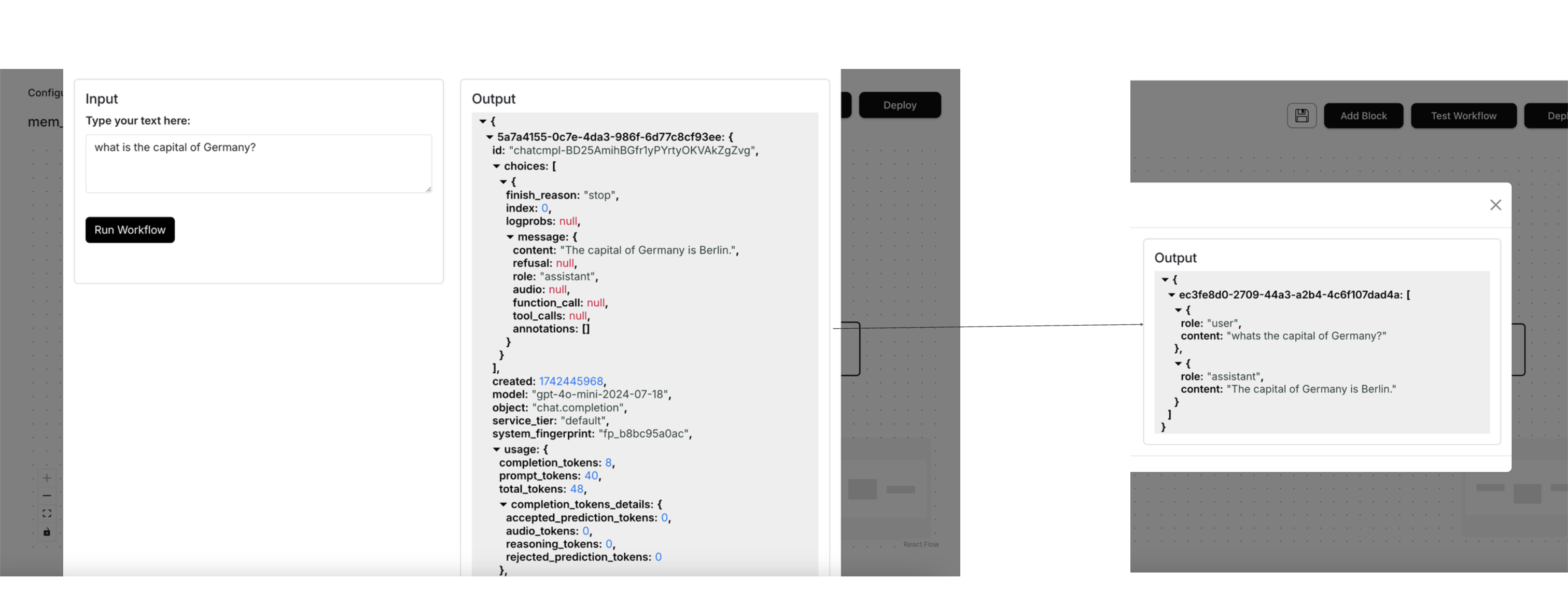
This is where custom code comes in. When configuring a block, you'll notice the following:
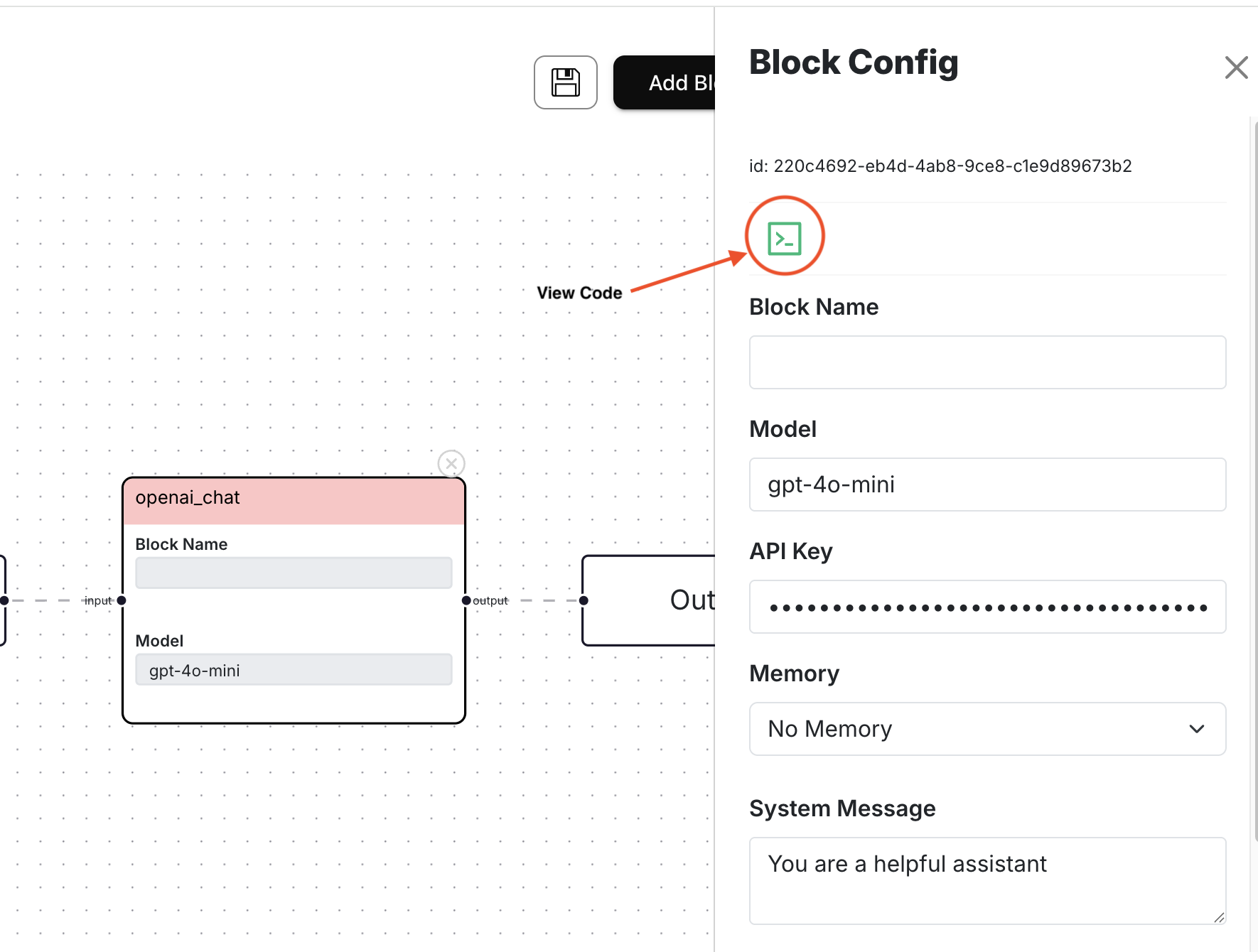
On clicking the button, you'll see a window, with the block's implementation, pop up which should look as follows:
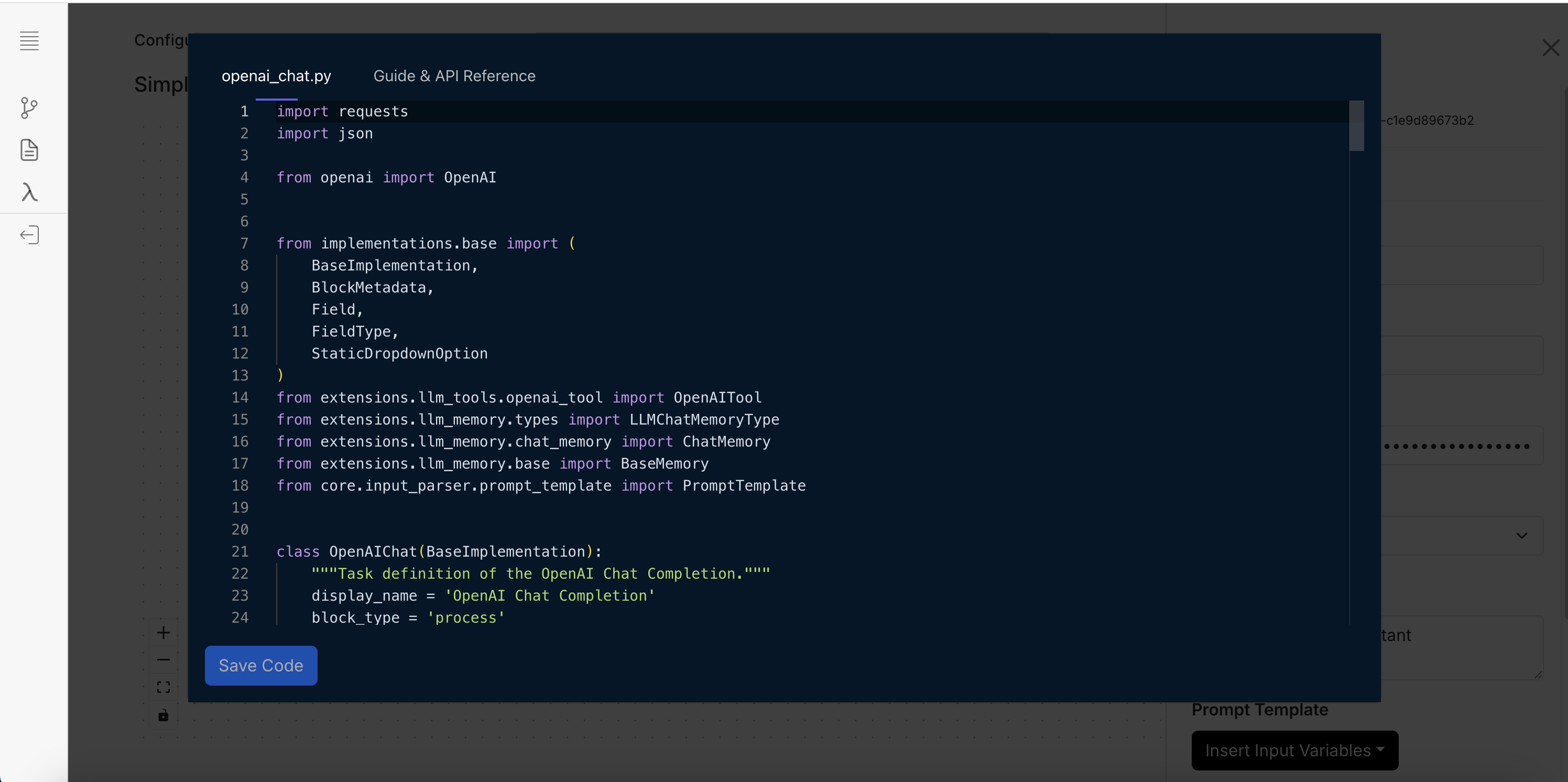
This window contains the block's implementation that you can modify. For this tutorial, we will simply try to return the conversation object. Simply copy the code below and paste it on the window and hit Save Code:
Custom code snippet to copy
import requests
import json

from openai import OpenAI

from implementations.base import (
    BaseImplementation,
    BlockMetadata,
    Field,
    FieldType,
    StaticDropdownOption
)
from extensions.llm_memory.types import LLMChatMemoryType
from extensions.llm_memory.chat_memory import ChatMemory
from extensions.llm_memory.base import BaseMemory
from core.input_parser.prompt_template import PromptTemplate


class OpenAIChat(BaseImplementation):
    """Task definition of the OpenAI Chat Completion."""
    display_name = 'Custom OpenAI Chat Completion'
    block_type = 'process'
    block_metadata = BlockMetadata([
        Field(
            name="model",
            display_name="Model",
            is_run_config=True,
            default_value='gpt-4o-mini'
        ),
        Field(
            name="openai_api_key",
            display_name="API Key",
            is_run_config=True,
            show_in_ui=False,
            type=FieldType.PASSWORD.value
        ),
        Field(
            name="chat_memory",
            display_name="Memory",
            is_run_config=True,
            show_in_ui=False,
            default_value='',
            type=FieldType.STATIC_DROPDOWN.value,
            metadata={
                "dropdown_options": [
                    StaticDropdownOption(
                        label="No Memory", value=''
                    ).__dict__,
                    StaticDropdownOption(
                        label="Basic Memory", value=LLMChatMemoryType.BASIC_MEMORY.value
                    ).__dict__
                ]
            }
        ),
        Field(
            name="system",
            display_name="System Message",
            is_run_config=True,
            show_in_ui=False,
            type=FieldType.TEXTAREA.value
        ),
        Field(
            name="prompt_template",
            display_name="Prompt Template",
            is_run_config=True,
            show_in_ui=False,
            type=FieldType.PROMPT_TEMPLATE.value
        ),
    ])

    def __init__(self, run_config:dict) -> None:
        super().__init__()
        self.run_config = run_config
        if not self.run_config.get('openai_api_key'):
            raise Exception("OpenAI API key is not specified in the run config")
        self.openAI_client = OpenAI(
            api_key=self.run_config.get('openai_api_key'),
        )
        self.chat_memory:BaseMemory = ChatMemory().initialize(
            memory_type=run_config.get('chat_memory'),
            block_uuid=run_config['block_uuid']
        )
        self.messages = []
        self.available_tools = {}
        self.model = 'gpt-4o-mini'
        self.prompt_template = None
        self.create_payload_from_run_config()

    def run(self, input_:dict) -> dict:
        messages = []

        # Create prompt
        parse_input = PromptTemplate(
            input_=input_,
            template=self.prompt_template
        )
        prompt_template = parse_input()

        # Flag to determine if a function is available to be called
        make_function_call = False
        messages = self.chat_memory.get(
            user_prompt={
                'role': 'user',
                'content': prompt_template
            }
        )
        messages = [self.insert_system_message()] + messages

        # Make the first call.
        response = self.openAI_client.chat.completions.create(
            model=self.model,
            messages=messages,
            tools=None
        )
        response = response.dict()
        choice = response['choices'][0]
        messages.append(
            self.openai_response_get_message(
                response_choice=choice
            )
        )
        self.chat_memory.put(messages)

        response['conversation'] = messages[1:]
        # Simply return the conversation object.
        return response['conversation']


    def openai_response_get_message(self, response_choice):
        """
        Process the response from OpenAI's chat.completions.create API call,
        returning the message that should be appended to the conversation.

        Args:
            response_choice: The response from OpenAI's chat.completions.create API call

        Returns:
            A dictionary containing the message to be appended to the conversation
        """
        message = {"role": ""}
        #response_choice = response.choices[0]
        message['role'] = response_choice["message"]["role"]
        if response_choice["message"]['content']:
            message['content'] = response_choice["message"]["content"]
        if response_choice["message"]['tool_calls']:
            message['tool_calls'] = response_choice["message"]["tool_calls"]
        return message


    def create_payload_from_run_config(self) -> dict:

        model = self.run_config.get('model', 'gpt-4o-mini')
        self.model = model

        prompt_template = self.run_config.get('prompt_template')
        self.prompt_template = prompt_template

    def insert_system_message(self):
        system_message = self.run_config.get('system')
        return {"role": "system", "content": system_message}
Once you hit save, a confirmation window will show up where you can save the code as openai_chat_custom.py.
Once saved, you'll notice that on the screen, the tools option will dissapear. This is because we removed all references
to the tool run_config and the tool Field. This was mostly to show you how removing the Field attribute impacts what gets
rendered on the screen. Furthermore, now we are simply returning return response['conversation'].
Add a field for temperature
In otto-m8's implementation of LLM's, we do not include temperature but if you use these LLM's with temperature, you can add it via custom code. What we'll be doing is the following:
- Add a Field:
Field(
    name="temperature",
    display_name="Temperature",
    is_run_config=True, show_in_ui=False,
    default_value=0.2,
    type=FieldType.NUMBER.value
) - Get it from the
run_configduring__init__:self.temperature = float(run_config.get('temperature')) - Pass the temperature to the OpenAI Client:
response = self.openAI_client.chat.completions.create(
        model=self.model,
        messages=messages,
        tools=None,
        temperature=self.temperature
    )
The final code will look as follows:
Custom code snippet with temperature Field
import requests
import json

from openai import OpenAI

from implementations.base import (
    BaseImplementation,
    BlockMetadata,
    Field,
    FieldType,
    StaticDropdownOption
)
from extensions.llm_memory.types import LLMChatMemoryType
from extensions.llm_memory.chat_memory import ChatMemory
from extensions.llm_memory.base import BaseMemory
from core.input_parser.prompt_template import PromptTemplate


class OpenAIChat(BaseImplementation):
    """Task definition of the OpenAI Chat Completion."""
    display_name = 'OpenAI Chat Completion'
    block_type = 'process'
    block_metadata = BlockMetadata([
        Field(
            name="model",
            display_name="Model",
            is_run_config=True,
            default_value='gpt-4o-mini'
        ),
        Field(
            name="openai_api_key",
            display_name="API Key",
            is_run_config=True,
            show_in_ui=False,
            type=FieldType.PASSWORD.value
        ),
        Field(
            name="chat_memory",
            display_name="Memory",
            is_run_config=True,
            show_in_ui=False,
            default_value='',
            type=FieldType.STATIC_DROPDOWN.value,
            metadata={
                "dropdown_options": [
                    StaticDropdownOption(
                        label="No Memory", value=''
                    ).__dict__,
                    StaticDropdownOption(
                        label="Basic Memory", value=LLMChatMemoryType.BASIC_MEMORY.value
                    ).__dict__
                ]
            }
        ),
        Field(
            name="system",
            display_name="System Message",
            is_run_config=True,
            show_in_ui=False,
            type=FieldType.TEXTAREA.value
        ),
        Field(
            name="prompt_template",
            display_name="Prompt Template",
            is_run_config=True,
            show_in_ui=False,
            type=FieldType.PROMPT_TEMPLATE.value
        ),
        Field(
            name="temperature",
            display_name="Temperature",
            is_run_config=True, show_in_ui=False,
            default_value=0.2,
            type=FieldType.NUMBER.value
        )
    ])

    def __init__(self, run_config:dict) -> None:
        super().__init__()
        self.run_config = run_config
        if not self.run_config.get('openai_api_key'):
            raise Exception("OpenAI API key is not specified in the run config")
        self.openAI_client = OpenAI(
            api_key=self.run_config.get('openai_api_key'),
        )
        self.chat_memory:BaseMemory = ChatMemory().initialize(
            memory_type=run_config.get('chat_memory'),
            block_uuid=run_config['block_uuid']
        )
        self.messages = []
        self.available_tools = {}
        self.model = 'gpt-4o-mini'
        self.prompt_template = None
        self.create_payload_from_run_config()
        self.temperature = float(run_config.get('temperature'))

    def run(self, input_:dict) -> dict:
        messages = []

        # Create prompt
        parse_input = PromptTemplate(
            input_=input_,
            template=self.prompt_template
        )
        prompt_template = parse_input()

        # Flag to determine if a function is available to be called
        make_function_call = False
        messages = self.chat_memory.get(
            user_prompt={
                'role': 'user',
                'content': prompt_template
            }
        )
        messages = [self.insert_system_message()] + messages

        # Make the first call.
        response = self.openAI_client.chat.completions.create(
            model=self.model,
            messages=messages,
            tools=None,
            temperature=self.temperature
        )
        response = response.dict()
        choice = response['choices'][0]
        messages.append(
            self.openai_response_get_message(
                response_choice=choice
            )
        )
        self.chat_memory.put(messages)

        response['conversation'] = messages[1:]
        # Simply return the conversation object.
        return response['conversation']


    def openai_response_get_message(self, response_choice):
        """
        Process the response from OpenAI's chat.completions.create API call,
        returning the message that should be appended to the conversation.

        Args:
            response_choice: The response from OpenAI's chat.completions.create API call

        Returns:
            A dictionary containing the message to be appended to the conversation
        """
        message = {"role": ""}
        #response_choice = response.choices[0]
        message['role'] = response_choice["message"]["role"]
        if response_choice["message"]['content']:
            message['content'] = response_choice["message"]["content"]
        if response_choice["message"]['tool_calls']:
            message['tool_calls'] = response_choice["message"]["tool_calls"]
        return message


    def create_payload_from_run_config(self) -> dict:

        model = self.run_config.get('model', 'gpt-4o-mini')
        self.model = model

        prompt_template = self.run_config.get('prompt_template')
        self.prompt_template = prompt_template

    def insert_system_message(self):
        system_message = self.run_config.get('system')
        return {"role": "system", "content": system_message}
Few things to note:
-
The order of the Field's within BlockMetadata determines the order in which it will render on screen:
For example, if the order looks as follows:
Fieldorder inBlockMetadatablock_metadata = BlockMetadata([
Field(
name="model",
display_name="Model",
is_run_config=True,
default_value='gpt-4o-mini'
),
Field(
name="openai_api_key",
display_name="API Key",
is_run_config=True,
show_in_ui=False,
type=FieldType.PASSWORD.value
),
Field(
name="chat_memory",
display_name="Memory",
is_run_config=True,
show_in_ui=False,
default_value='',
type=FieldType.STATIC_DROPDOWN.value,
metadata={
"dropdown_options": [
StaticDropdownOption(
label="No Memory", value=''
).__dict__,
StaticDropdownOption(
label="Basic Memory", value=LLMChatMemoryType.BASIC_MEMORY.value
).__dict__
]
}
),
Field(
name="system",
display_name="System Message",
is_run_config=True,
show_in_ui=False,
type=FieldType.TEXTAREA.value
),
Field(
name="prompt_template",
display_name="Prompt Template",
is_run_config=True,
show_in_ui=False,
type=FieldType.PROMPT_TEMPLATE.value
),
Field(
name="temperature",
display_name="Temperature",
is_run_config=True, show_in_ui=False,
default_value=0.2,
type=FieldType.NUMBER.value
)
])Then the UI will render as:
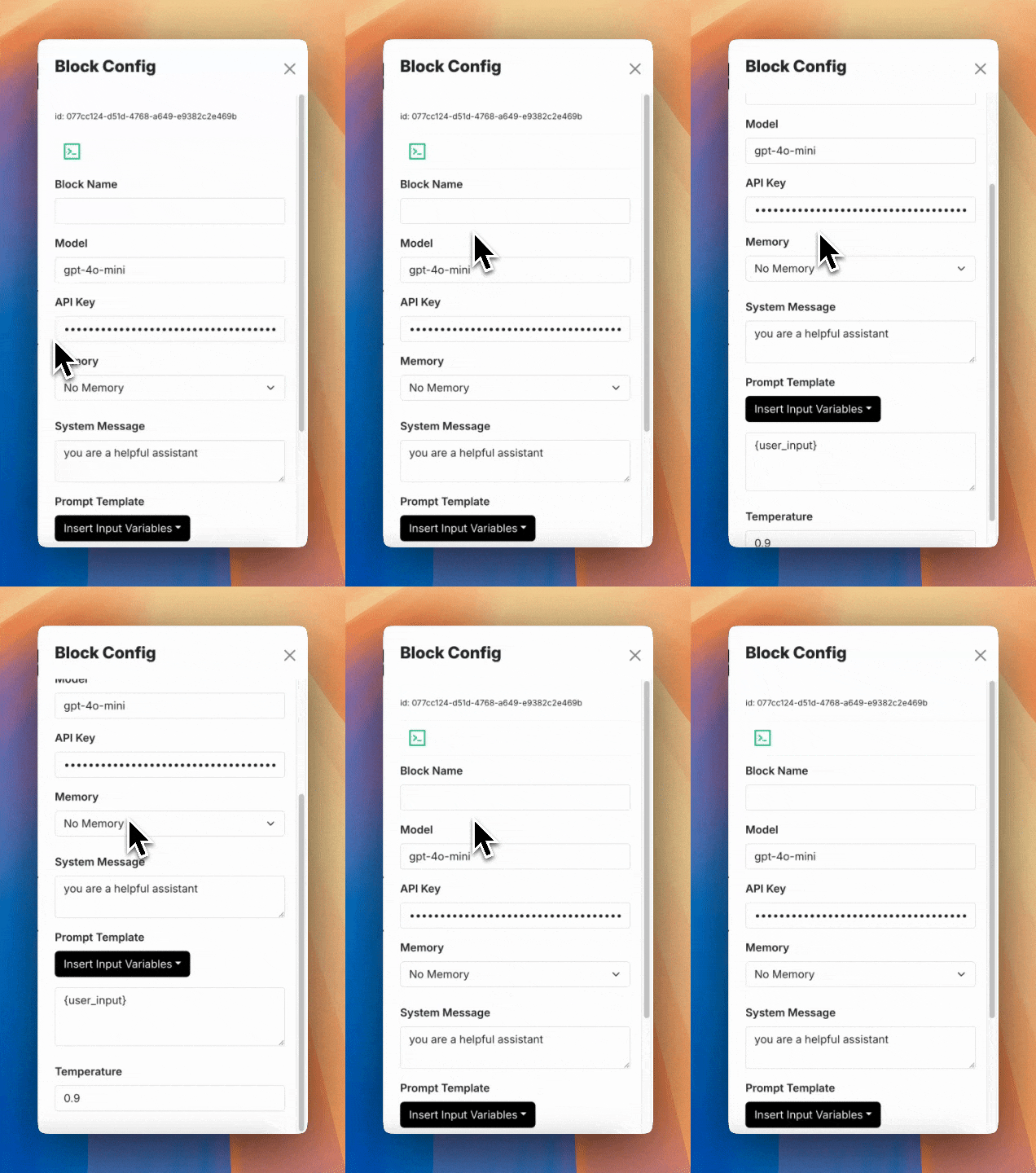
-
When writing code, make sure you are not introducing any error. One way to look for error is to monitor the terminal where you ran
./run.shin the beginning. Any error made will definitely show up there. Another way to know an error was made is if you notice that all the fields in the block disapeared when obviously that wasn't intended, and that you'll notice in Add Block that the particular custom block's display name shows up as the file name you saved it as(in all uppercase). Although this isn't really an ideal workflow since making mistakes during coding is pretty normal. Therefore, we're looking for contributors to add a Language server that the code editor could use to warn users ahead of time of any potential syntax errors. See Issue #76 on Github.
Let's now run Test Workflow with the following prompt:
Prompt: What goes really well with cream cheese?
| temperature | answer |
|---|---|
| 0.2 | Cream cheese is a versatile ingredient that pairs well with a variety of flavors and foods. Here are some great combinations: 1. Fruits: - Fresh fruits like strawberries, blueberries, and raspberries - Dried fruits such as apricots and figs - Citrus fruits like oranges and lemons 2. Savory Ingredients: - Fresh herbs like chives, dill, and parsley - Smoked salmon or lox - Bacon or prosciutto - Roasted vegetables, such as bell peppers or zucchini 3. Spices and Condiments: - Honey or maple syrup for a sweet touch - Hot sauce or sriracha for a spicy kick - Garlic or onion powder for added flavor - Pesto or salsa for a fresh twist 4. Breads and Crackers: - Bagels, especially toasted - Crostini or bruschetta - Graham crackers or digestive biscuits for a sweet treat 5. Nuts and Seeds: - Chopped nuts like walnuts, pecans, or almonds - Seeds such as sesame or sunflower seeds 6. Chocolate: - Chocolate chips or cocoa powder for desserts - Chocolate-covered fruits or nuts 7. Baked Goods: - In cheesecakes or as a frosting for cakes and cupcakes - In pastries or danishes These combinations can be used in various dishes, from spreads and dips to desserts and savory dishes. Enjoy experimenting with cream cheese! |
| 0.9 | Cream cheese is a versatile ingredient that pairs well with a variety of foods. Here are some great combinations: 1. Bagels: Classic pairing, especially with smoked salmon, capers, and red onion. 2. Fruits: Berries (strawberries, blueberries), peaches, and apples work well. You can make a fruit spread or dip. 3. Vegetables: Celery, bell peppers, and carrots can be paired with cream cheese for a satisfying snack. 4. Herbs and Spices: Fresh herbs like chives, dill, or parsley, as well as spices like garlic or paprika, can enhance the flavor. 5. Jams and Jellies: Fruit preserves, honey, or even savory chutneys can add a lovely sweetness. 6. Crackers: Serve with assorted crackers for a simple appetizer. 7. Dips: Mix cream cheese with sour cream, ranch dressing, or salsa for flavorful dips. 8. Baked Goods: Use cream cheese in frosting for cakes or as a filling in pastries like danishes. 9. Meats: Pair with prosciutto, salami, or roasted turkey for a savory touch. 10. Nuts: Walnuts, pecans, or almonds can add a nice crunch. Experimenting with these combinations can lead to delightful new flavors and textures!" |
Final Thoughts
In this tutorial, we covered the following things that can be done with otto-m8:
- How to alter a block's implementation to return different outputs.
- How removing a Field from the BlockMetadata renders on the screen
- How adding a new Field to BlockMetadata renders on the screen.
- Finally, how to use custom code.